

By Edit Gyenge | Unconventional Charts, Simple Tools · Episode 1
A radial tilemap gives every item its own ring, places the rings on a grid, and splits each ring into one segment per year, coloured by value. Here is how to build one in Excel. No code, no macros, and no chart type that Excel doesn’t already have.
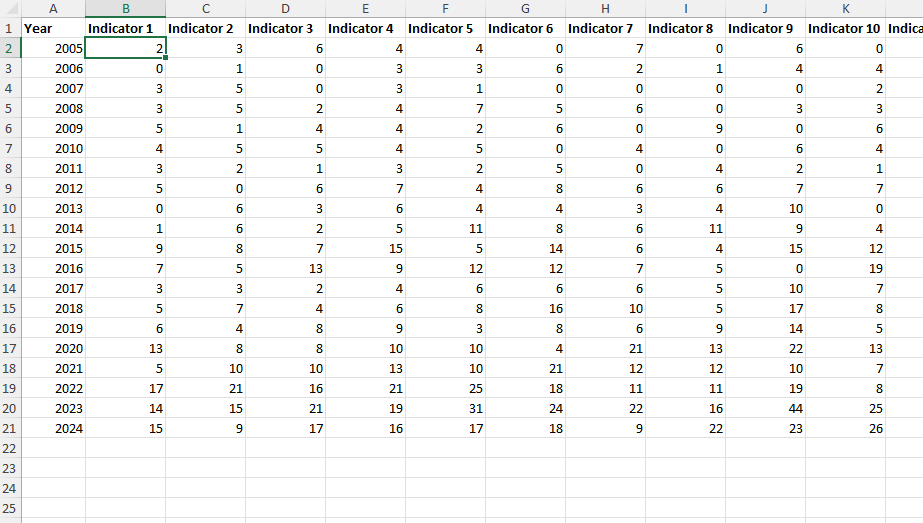
You start with a spreadsheet of years down the page and indicators across. I have 42 elements across columns, one value per indicator per year, 2005–2024. The numbers are made up. This is how my data looks like:
You finish with 42 coloured rings arranged on a grid. There are 20 steps in four parts.
Anything highlighted like this copies when you click it. Grey boxes have a Copy button and paste straight into Excel: click the cell named above the box, then press Ctrl+V. Bold words are things you click.
The indicators are spread across 42 columns. The drawing needs one row per indicator per year, which is 840 rows of year, indicator and value. Excel can do this conversion for you.
1. Open your data file and click inside it
Open the data file. Click any cell that has data in it, for example B2.
2. Turn it into a Table
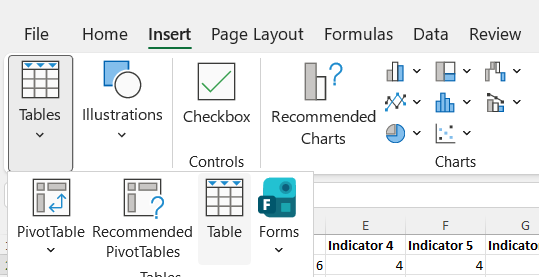
Go to the Insert tab and click Table. If you do not see a Table button, click Tables first and pick Table from the list. Excel collapses that group when the window is narrow.
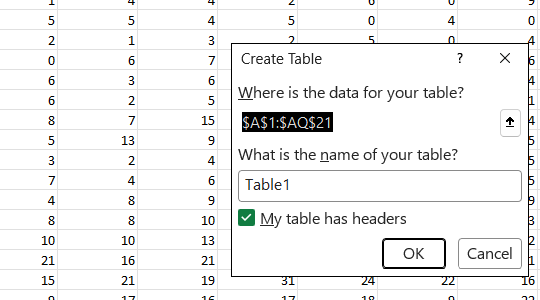
A small box appears showing the range. Make sure My table has headers is ticked, then click OK.
The data gets a blue banded look. That is normal.
3. Open Power Query
Go to the Data tab and click From Table/Range.
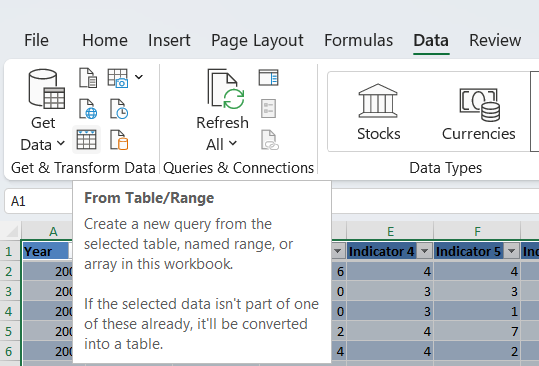
A new window opens called Power Query Editor. Your data is in it. Excel is still open behind.
4. Unpivot the indicators
Click once on the Year column heading to select just that column.
Right-click the Year column heading and choose Unpivot Other Columns from the menu that appears.
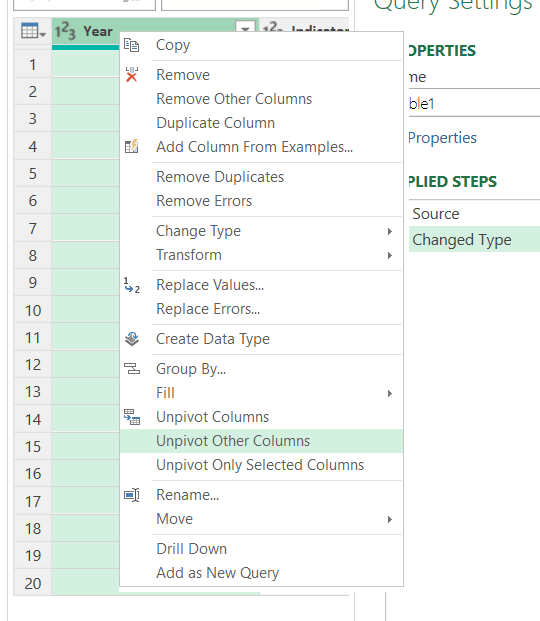
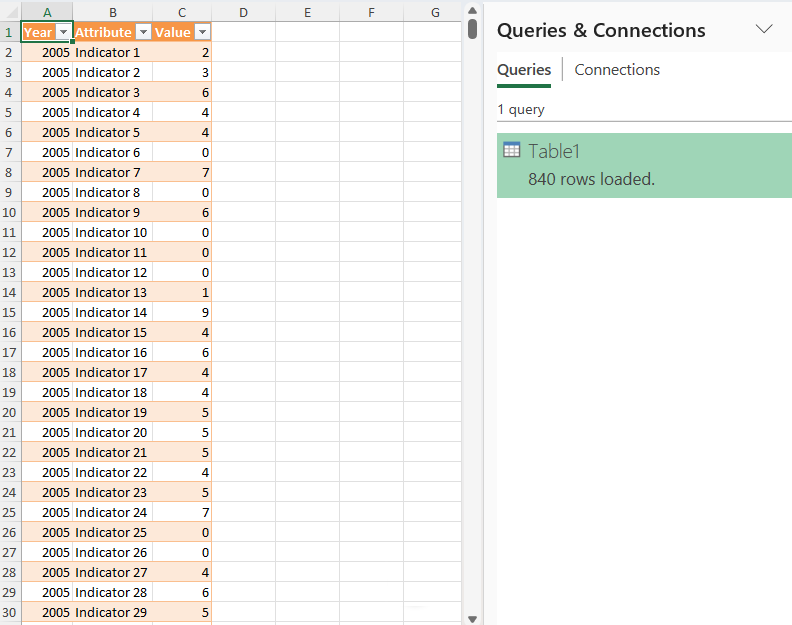
The 43 columns collapse into three: Year, Attribute, Value. Attribute holds the indicator name, Value holds the number. You now have 840 rows.
Why: This is the whole conversion, in one click. Unpivoting takes a wide table and stacks it into a tall one, which is the shape the drawing needs.
5. Check what you got
The bar at the bottom should read 3 columns. They are Year, Attribute (the indicator name) and Value, in that order.
Leave them exactly as they are. Do not try to reorder them. Power Query rewrites the whole order every time you move one, and the formulas later on read them in this order.
6. Send it back to Excel
On the Home tab of the Power Query window, click Close & Load.
A new sheet appears with your three columns in it. Leave it there for now.
Add five more sheets and name them exactly settings, palette, grid, raw and xy. The formulas refer to these names, so spell them the same way. This part fills the first four.
7. The settings sheet
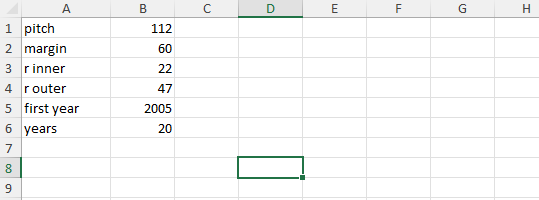
Six numbers. Labels in column A, values in column B.
| Cell | Label | Value | What it does |
|---|---|---|---|
| B1 | pitch | 112 | how far apart the ring centres sit |
| B2 | margin | 60 | empty space around the outside |
| B3 | r inner | 22 | the size of the hole |
| B4 | r outer | 47 | the outer edge of the ring |
| B5 | first year | 2005 | the year at the top of every ring |
| B6 | years | 20 | how many segments per ring |
Or copy this, click A1 on the settings sheet and paste:
					pitch	112
margin	60
r inner	22
r outer	47
first year	2005
years	20
8. The palette sheet
Nine rows starting at row 2. Column A is a value, column B is a colour code. Lowest number at the top.
| Row | A: value or more | B: hex |
|---|---|---|
| 2 | 0 | FFFDE4 |
| 3 | 2 | FEF0A8 |
| 4 | 5 | FDD976 |
| 5 | 9 | FDAE4B |
| 6 | 14 | F87A33 |
| 7 | 20 | E8482C |
| 8 | 27 | C41E4E |
| 9 | 35 | 7E1E62 |
| 10 | 45 | 3B1149 |
Or copy this, click A2 on the palette sheet and paste:
					0	FFFDE4
2	FEF0A8
5	FDD976
9	FDAE4B
14	F87A33
20	E8482C
27	C41E4E
35	7E1E62
45	3B1149
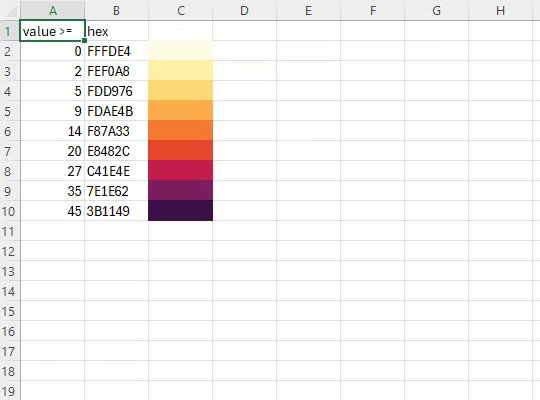
Why: A segment takes the colour of the highest row it reaches. A value of 6 uses the 5 row, because 6 is more than 5 but less than 9.
9. The grid sheet
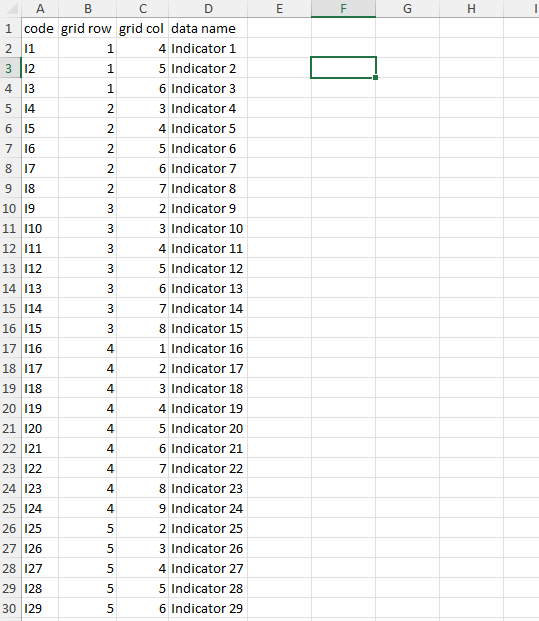
42 rows starting at row 2, four columns:
| Column | Holds | Example |
|---|---|---|
| A | a short code for the indicator | I1 |
| B | which row of the layout it sits in | 1 |
| C | which column of the layout | 4 |
| D | the indicator name exactly as it appears in your data | Indicator 1 |
This is the full layout. Row and column give each indicator its place on the grid. Copy the block below, click A2 on the grid sheet and paste. It fills rows 2 to 43, with Indicator 1 in row 2, which step 16 relies on.
					I1	1	4	Indicator 1
I2	1	5	Indicator 2
I3	1	6	Indicator 3
I4	2	3	Indicator 4
I5	2	4	Indicator 5
I6	2	5	Indicator 6
I7	2	6	Indicator 7
I8	2	7	Indicator 8
I9	3	2	Indicator 9
I10	3	3	Indicator 10
I11	3	4	Indicator 11
I12	3	5	Indicator 12
I13	3	6	Indicator 13
I14	3	7	Indicator 14
I15	3	8	Indicator 15
I16	4	1	Indicator 16
I17	4	2	Indicator 17
I18	4	3	Indicator 18
I19	4	4	Indicator 19
I20	4	5	Indicator 20
I21	4	6	Indicator 21
I22	4	7	Indicator 22
I23	4	8	Indicator 23
I24	4	9	Indicator 24
I25	5	2	Indicator 25
I26	5	3	Indicator 26
I27	5	4	Indicator 27
I28	5	5	Indicator 28
I29	5	6	Indicator 29
I30	5	7	Indicator 30
I31	5	8	Indicator 31
I32	6	3	Indicator 32
I33	6	4	Indicator 33
I34	6	5	Indicator 34
I35	6	6	Indicator 35
I36	6	7	Indicator 36
I37	6	8	Indicator 37
I38	7	4	Indicator 38
I39	7	5	Indicator 39
I40	7	6	Indicator 40
I41	7	7	Indicator 41
I42	7	8	Indicator 42
CAREFUL: Column D must match the top row of your data file character for character. The block above already does. With your own data, copy the names straight from the file rather than typing them out.
10. The raw sheet
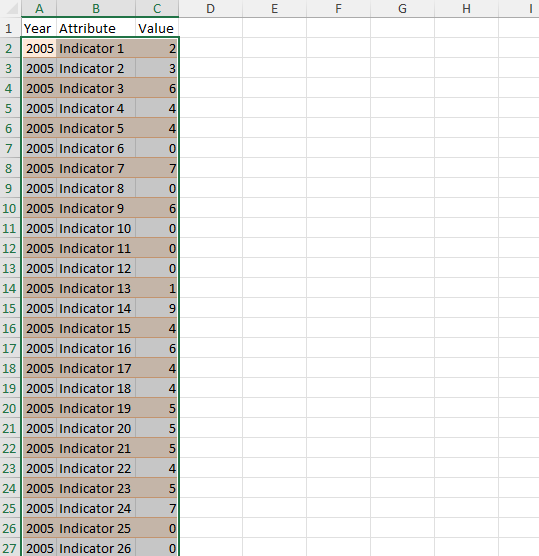
Type Year, Attribute and Value into A1, B1 and C1 of the raw sheet.
Go back to the sheet Power Query created. Select your three columns of data (not the header row) and copy them.
Go to the raw sheet, click cell A2, and paste.
Column A is the year, column B is the indicator name, column C is the value, exactly as Power Query produced them. 840 rows, ending at row 841.
Why: The order does not matter. The drawing finds each number by looking up the indicator name and the year, not by counting rows. You can sort this sheet however you like and nothing breaks.
This is the part that turns 840 numbers into the geometry of 42 rings.
11. Understand what you are building
A ring is not drawn as a ring. It is drawn as 20 straight lines sticking out from a centre point, like spokes on a wheel. Each spoke is one year.
To draw one spoke you need three rows:
42 indicators × 20 years = 840 spokes. 840 × 3 rows = 2,520 rows. That is why the sheet is so long.
You will enter 22 formulas once, then fill them down. You never type a coordinate by hand.
12. Put the headings in row 1
Go to the xy sheet, click A1 and paste this row. It fills the 22 headings from A1 to V1.
k t iIdx yIdx code value angle cx cy r X Y bin y1 y2 y3 y4 y5 y6 y7 y8 y9
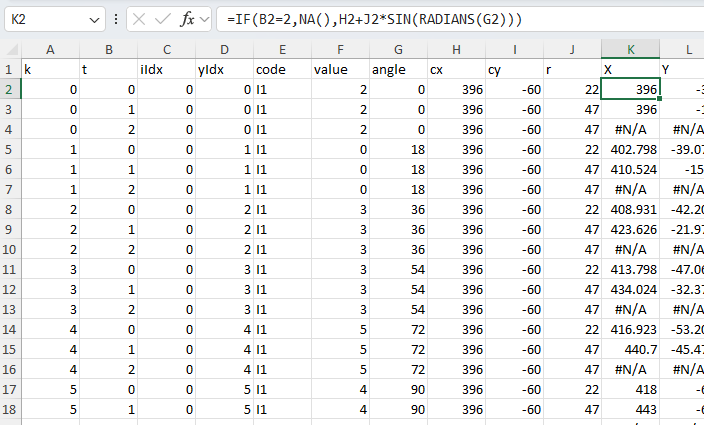
13. Put these thirteen formulas into row 2
| Cell | Formula | What it works out |
|---|---|---|
| A2 | =INT((ROW()-2)/3) | which segment this row belongs to (0 to 839) |
| B2 | =MOD(ROW()-2,3) | 0 = inner end, 1 = outer end, 2 = the break |
| C2 | =INT(A2/settings!$B$6) | which indicator (0 to 41) |
| D2 | =MOD(A2,settings!$B$6) | which year (0 = 2005, 19 = 2024) |
| E2 | =INDEX(grid!$A$2:$A$43,C2+1) | the indicator code, only so you can check your work |
| F2 | =SUMIFS(raw!$C$2:$C$841,raw!$B$2:$B$841,INDEX(grid!$D$2:$D$43,C2+1),raw!$A$2:$A$841,settings!$B$5+D2) | finds the value for that indicator and that year |
| G2 | =D2*360/settings!$B$6 | the angle for this year. 0 points straight up |
| H2 | =settings!$B$2+(INDEX(grid!$C$2:$C$43,C2+1)-1)*settings!$B$1 | centre of this indicator’s ring, left to right |
| I2 | =-(settings!$B$2+(INDEX(grid!$B$2:$B$43,C2+1)-1)*settings!$B$1) | centre, top to bottom (negative so row 1 is at the top) |
| J2 | =IF(B2=0,settings!$B$3,settings!$B$4) | how far out this end sits: the hole, or the outer edge |
| K2 | =IF(B2=2,NA(),H2+J2*SIN(RADIANS(G2))) | the final left-right position of this point |
| L2 | =IF(B2=2,NA(),I2+J2*COS(RADIANS(G2))) | the final top-bottom position of this point |
| M2 | =IFERROR(MATCH(F2,palette!$A$2:$A$10,1),1) | which of the nine colours this segment needs |
Or paste all thirteen at once: click A2 on the xy sheet and paste this row.
=INT((ROW()-2)/3) =MOD(ROW()-2,3) =INT(A2/settings!$B$6) =MOD(A2,settings!$B$6) =INDEX(grid!$A$2:$A$43,C2+1) =SUMIFS(raw!$C$2:$C$841,raw!$B$2:$B$841,INDEX(grid!$D$2:$D$43,C2+1),raw!$A$2:$A$841,settings!$B$5+D2) =D2*360/settings!$B$6 =settings!$B$2+(INDEX(grid!$C$2:$C$43,C2+1)-1)*settings!$B$1 =-(settings!$B$2+(INDEX(grid!$B$2:$B$43,C2+1)-1)*settings!$B$1) =IF(B2=0,settings!$B$3,settings!$B$4) =IF(B2=2,NA(),H2+J2*SIN(RADIANS(G2))) =IF(B2=2,NA(),I2+J2*COS(RADIANS(G2))) =IFERROR(MATCH(F2,palette!$A$2:$A$10,1),1)
Why: Read the list downwards and it is just a recipe. Which segment am I? Which indicator and year is that? What is the number for it? What angle is that year? Where is that indicator’s ring? How far out is this end? Therefore, where exactly is this point, and what colour is it?
14. Put the nine colour formulas into N2 to V2
The same formula nine times, changing only the number:
| Cell | Formula |
|---|---|
| N2 | =IF($M2=1,$L2,NA()) |
| O2 | =IF($M2=2,$L2,NA()) |
| P2 | =IF($M2=3,$L2,NA()) |
| Q2 | =IF($M2=4,$L2,NA()) |
| R2 | =IF($M2=5,$L2,NA()) |
| S2 | =IF($M2=6,$L2,NA()) |
| T2 | =IF($M2=7,$L2,NA()) |
| U2 | =IF($M2=8,$L2,NA()) |
| V2 | =IF($M2=9,$L2,NA()) |
Or paste all nine at once: click N2 and paste this row.
=IF($M2=1,$L2,NA()) =IF($M2=2,$L2,NA()) =IF($M2=3,$L2,NA()) =IF($M2=4,$L2,NA()) =IF($M2=5,$L2,NA()) =IF($M2=6,$L2,NA()) =IF($M2=7,$L2,NA()) =IF($M2=8,$L2,NA()) =IF($M2=9,$L2,NA())
In plain words: if this segment is colour 3, give me its position; otherwise give me nothing.
Why: Each of those nine columns becomes one line on the chart, and each line gets one fixed colour. A segment only appears in the column matching its colour, and shows #N/A in the other eight. That is how a formula ends up choosing a colour, which Excel will not otherwise let you do anywhere in a chart.
15. Fill everything down to row 2521
Select A2:V2 (the whole row of formulas you just typed) and copy it.
Click the Name Box (the small white box just above column A, left of the formula bar), type A3:V2521, and press Enter.
Paste.
That fills in 55,440 formulas. It takes about a second.
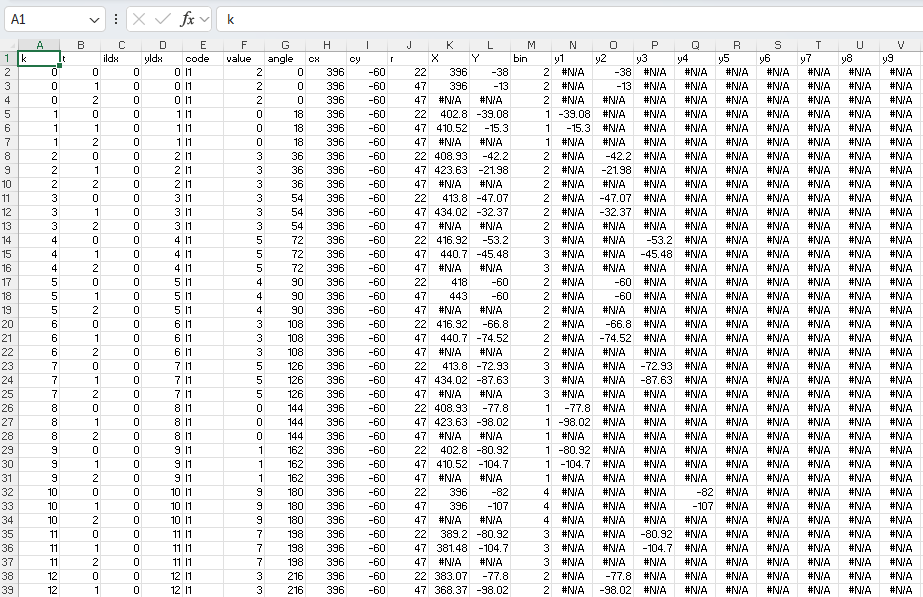
Why: ROW() in the first two formulas is what tells each row which segment it belongs to and whether it is an inner end, an outer end, or a break. Everything else follows from those two numbers, so filling down is all that is needed.
16. Check the first spoke
Rows 2, 3 and 4 are the first segment (Indicator 1, 2005) pointing straight up:
| Row | t | X | Y | what it is |
|---|---|---|---|---|
| 2 | 0 | 396 | -38 | inner end of the spoke |
| 3 | 1 | 396 | -13 | outer end of the spoke |
| 4 | 2 | #N/A | #N/A | the break before the next spoke |
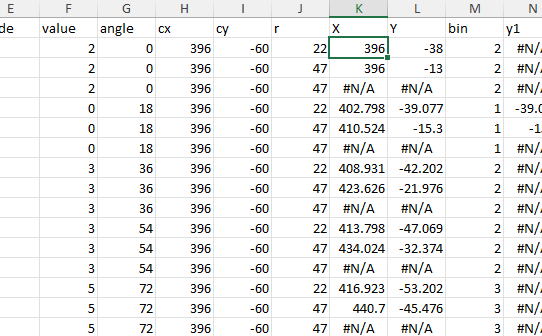
Both points share the same X because the angle is 0, which points straight up. Y runs from −38 to −13, which is the hole edge out to the outer edge. If your numbers look like this, it is working.
17. Insert an empty chart
Add one more sheet, name it chart build, and click any empty cell.
Go to the Insert tab. In the Charts group, find the small icon showing scattered dots. Hover over it and the tooltip says Insert Scatter (X, Y) or Bubble Chart.
Click it, then choose Scatter with Straight Lines. Not the version with markers.
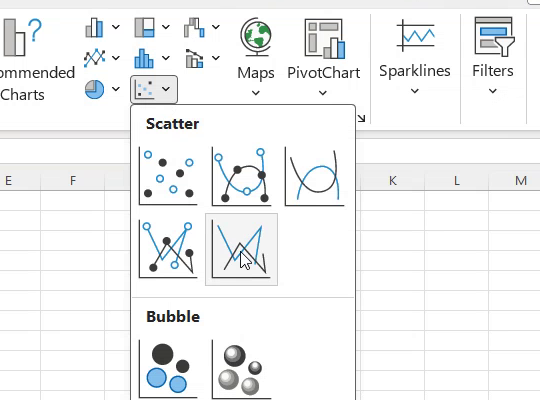
An empty chart box appears.
18. Add the nine lines
Click the chart once to select it. Go to the Chart Design tab and click Select Data. Click Add.
Three boxes appear. Fill them in, click OK, then click Add again for the next one. Nine times in total.
| Series name | Series X values | Series Y values |
|---|---|---|
bin 1 | =xy!$K$2:$K$2521 | =xy!$N$2:$N$2521 |
bin 2 | =xy!$K$2:$K$2521 | =xy!$O$2:$O$2521 |
bin 3 | =xy!$K$2:$K$2521 | =xy!$P$2:$P$2521 |
bin 4 | =xy!$K$2:$K$2521 | =xy!$Q$2:$Q$2521 |
bin 5 | =xy!$K$2:$K$2521 | =xy!$R$2:$R$2521 |
bin 6 | =xy!$K$2:$K$2521 | =xy!$S$2:$S$2521 |
bin 7 | =xy!$K$2:$K$2521 | =xy!$T$2:$T$2521 |
bin 8 | =xy!$K$2:$K$2521 | =xy!$U$2:$U$2521 |
bin 9 | =xy!$K$2:$K$2521 | =xy!$V$2:$V$2521 |
The X box is identical every time. Only the letter in the Y box moves along one.
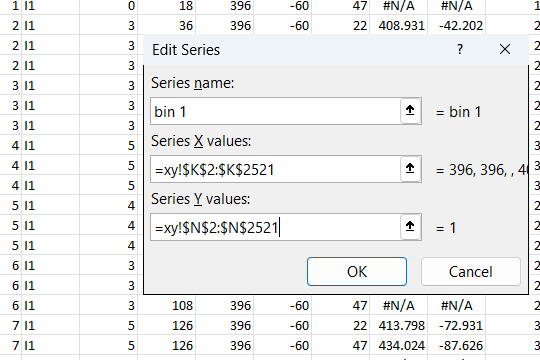
CAREFUL: Do not click into the Series X values or Series Y values boxes. Type the name, then press Tab to reach the X box, type it, and press Tab again for the Y box. Those two boxes go into cell-picking mode the moment you click them, and Excel then inserts a reference wherever your cursor lands. You end up with something like =xy!$N$2:$N$2521$N$2521, and no amount of backspacing fixes it reliably. Tab is the only safe way in.
After the third box, click OK, then Add again for the next line. When all nine are listed, click OK to close the whole dialog.
19. Colour the nine lines
Do not try to click a line in the chart to select it. With nine sets of spokes overlapping you cannot tell which one you hit. Pick each series by name instead:
5 pt.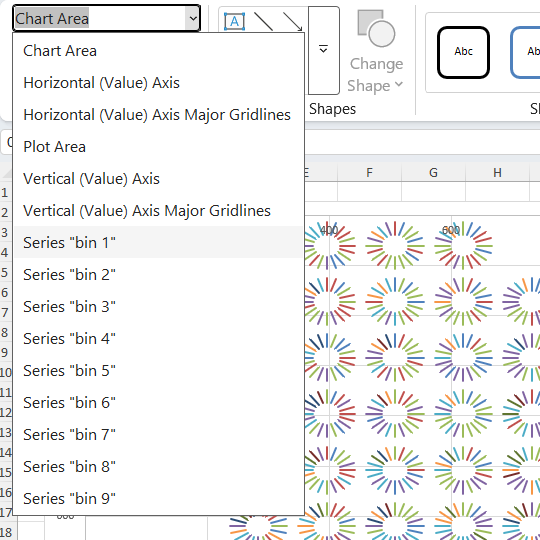
Then go back to the Current Selection dropdown, pick bin 2, and repeat. Nine times.
| Series | Hex code |
|---|---|
| bin 1 | FFFDE4 |
| bin 2 | FEF0A8 |
| bin 3 | FDD976 |
| bin 4 | FDAE4B |
| bin 5 | F87A33 |
| bin 6 | E8482C |
| bin 7 | C41E4E |
| bin 8 | 7E1E62 |
| bin 9 | 3B1149 |
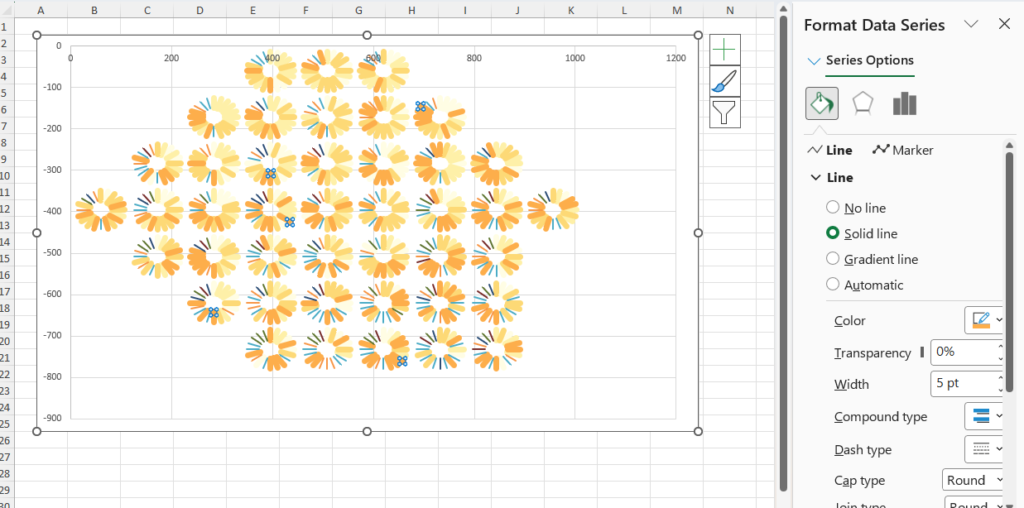
CAREFUL: Two things will trip you up. The first time you set a solid line, Excel warns that complex formatting may take a while to display. Click Yes. And every colour or width change makes it redraw all 22,680 points, which takes a few seconds. Wait for it. If you click while it is still redrawing, the click lands on the spreadsheet behind and types into a cell instead.
Once you have used a colour, it appears under Recent Colors in the dropdown, which pushes More Colors further down the menu. Look for it rather than clicking from memory.
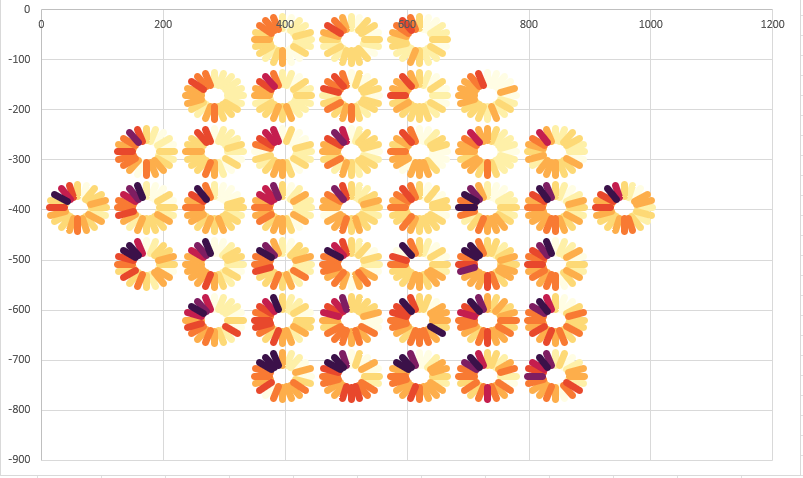
Why: Width decides how solid the rings look. With 20 years, every spoke stays visible as its own line, so single years are easy to spot. Go much thicker and neighbouring spokes start to merge. 5 pt is what the finished file uses.
20. Tidy it up
Click the + button beside the chart and untick Axes and Gridlines, and Chart Title if it is ticked. (Legend is already off.)
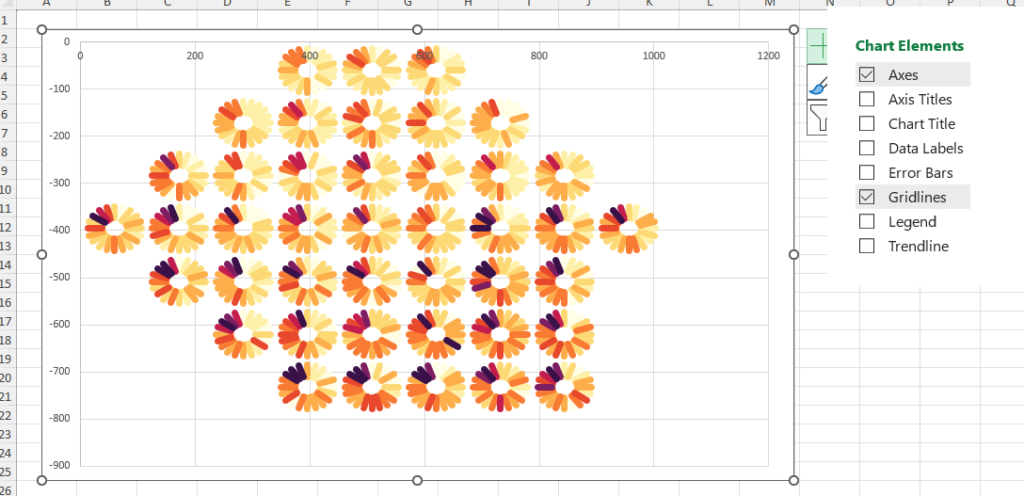
Use the Current Selection dropdown again to pick Chart Area, click Format Selection, and set Fill ▸ No fill and Border ▸ No line.
Then pick Plot Area from the same dropdown and set No fill and No line on that too. This one is easy to miss. The plot area keeps its own white box behind the rings, and you will only notice when you try to put the chart on a coloured background.
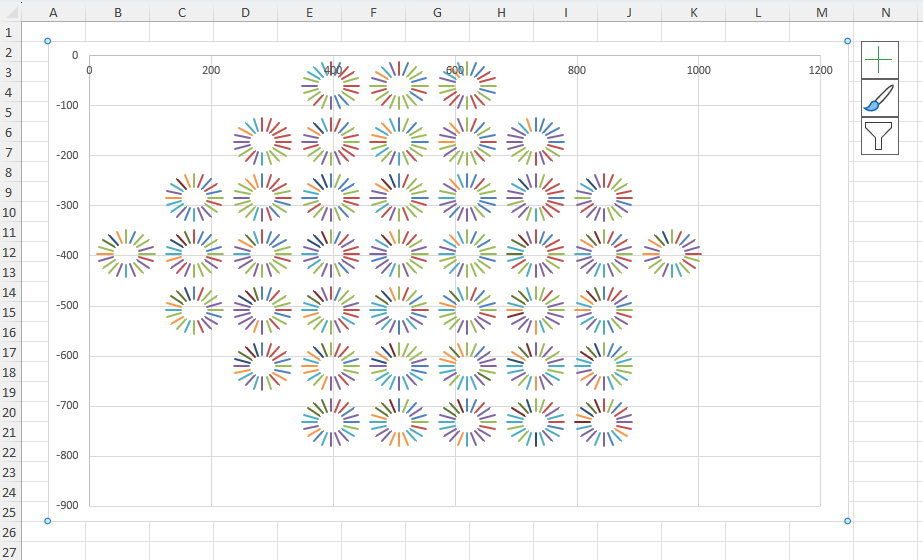
Drag the corner of the chart until the rings look round. If they look like ovals, the chart box is the wrong shape. The layout is 9 columns by 7 rows, so it needs to be about 1.3 times wider than it is tall.
That is the finished radial heatmap.

It updates by itself
Go to the settings sheet and change r inner from 22 to 34. Every hole in all 42 rings gets bigger, immediately. Change a number in column A of the palette sheet and the segments move to their new colours. Replace the numbers on the raw sheet and the rings redraw. Nothing needs re-running.
The one exception is the colours themselves. You set them by hand in step 19, so changing a hex code on the palette sheet does not recolour the chart. To change a colour, repeat step 19 for that series.
The one limitation
These are constant-width spokes, not true wedges that get wider as they go outwards. With 20 years you can see each spoke on its own; with many more years they blend into a solid ring. Either way it is not the same geometry as a true wedge. Excel can only draw lines of one width.
Next episode: same chart, completely different tools.